Create Testimonial-Style Videos Using Seedance 2.5 Realistic Rendering

These are videos that take the form of personal-style communication and include opinions, demonstrations, or experiences. They can be like customer interviews, creator reviews, work explanations, or product demonstrations. Realistic rendering is the basis for believable lighting, movement, environments, and speaker presentation. But real pictures don’t necessarily mean that a speaker is a real customer. An invented script can be delivered convincingly by a fictional character. Thus, creators need to differentiate between visual storytelling and factual endorsement. Pippit makes it easy to create, edit, perfect, and publish these video formats.
Plan the Testimonial Structure Before Generating
First, identify the speaker, location, and topic; who the audience is; and the purpose. For best results, Pippit’s AI video generator requires clear creative direction and accurate factual wording. Split the script into five related sections: introduction, context, key point, supporting visual, and closing. Determine when to use direct footage and when to use contextual footage. Make factual claims before developing visual prompts. This ensures that beautiful scenes don’t add unsupported benefits, prices, results, or experiences. A structured plan also helps in pacing, continuity, and editing decisions. Know the platform and audience expectations prior to generation. Vertical framing is ideal for short social feeds; landscape framing is ideal for presentations. Don’t use jargon or overly promotional terms that the speaker may not use normally. Write down the pronunciation of names, brands, and technical terms. Have backup entries in the seconds if the top seconds require more focus.
Design a Consistent Speaker and Sound Environment
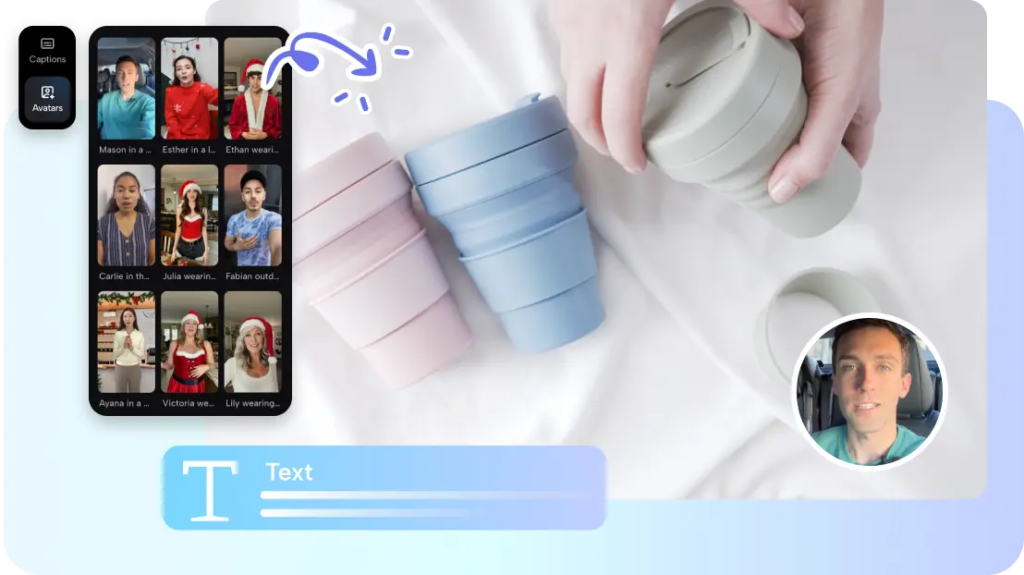
Before generating the scene, define the speaker’s clothes, setting, lighting, camera angle, facial expression, and presentation style. Seedance 2.5 responds best to certain prompts which give clear visual direction. Select a studio, office, shop, home, or outdoor setting that is appropriate for the testimonial subject matter and ensure the background is simple and realistic. SeedAudio 1.5 can create dialogue, ambience, sound effects, and music for the audio layer and accepts reference voices and timestamp placement. Avoid excessive gestures, unnatural posture, overly theatrical presentation, and background noise, allowing the speaker and the content to be the primary focus.

Elements of a Natural Testimonial Presentation
- Speaker framing: Use a medium or medium-close shot to ensure that the presenter is visible.
- Environment design: Choosing of appropriate objects and maintain the background placement.
- Lighting direction: Lighting direction to match windows, lamps, weather, and indoor conditions.
- Body movement: Ask for simple movements, natural breaks, and a relaxed body position.
- Supporting visuals: Use product, location, or process to illustrate the message.
- Closing moment: Conclude with a short product view, statement, or informational frame.
Steps to Create Testimonial-Style Videos Using Seedance 2.5 Realistic Rendering
Step 1: Build a Realistic Testimonial Setup
- Sign up for Pippit by using your Google, TikTok, or Facebook account info.
- Navigate to the “More” tab on the left vertical menu bar and click it to access “Video generator”.
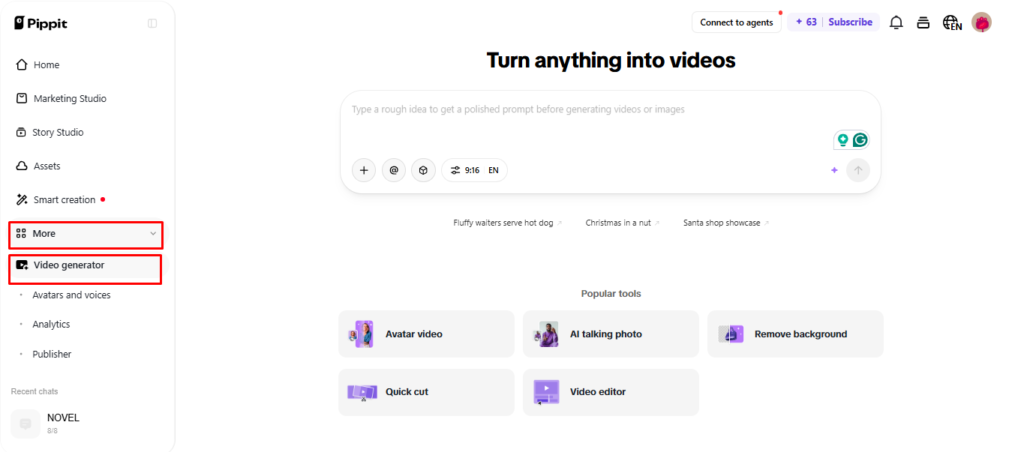
- Select an AI model, such as “Dreamina Seedance 2.5” for your video generation.
- Enter a detailed text prompt describing a testimonial-style video with a realistic speaker, natural setting, genuine expressions, and a clear customer experience.
- If you want, you can also select the video length, language, subtitles, and aspect ratio in which you want to generate the video. Select settings that match the testimonial format.
- Click “+” to upload reference images or videos from your device, phone, Dropbox, or a link. You can also select assets if you don’t have reference media.
- Once everything is added, click “Generate”.
Step 2: Generate the Customer Story
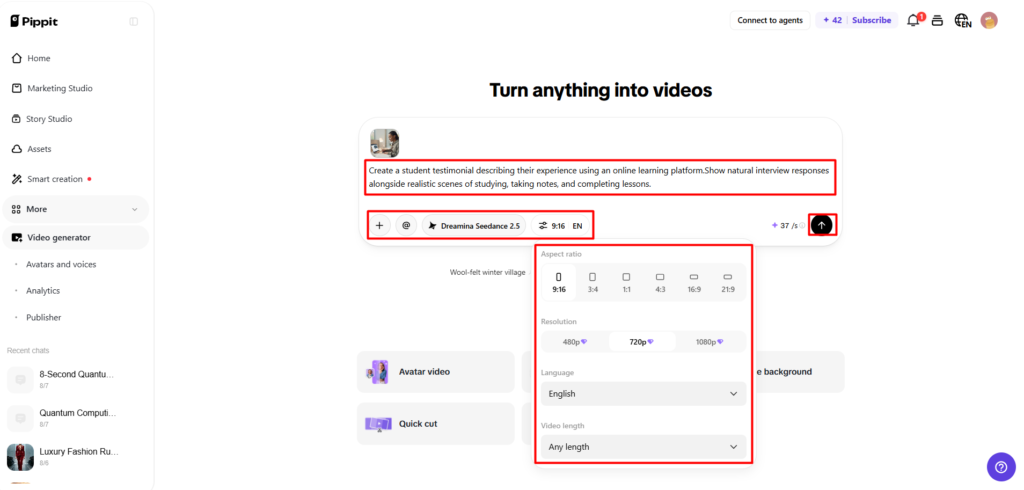
- After clicking “Generate”, Pippit’s AI video generator automatically creates a video based on your text prompt and reference media.
- The AI handles editing elements like transitions, pacing, captions, avatars, voice, lyrics, and visual enhancements.
- You will receive a video draft to review. Check whether the speaker, delivery, visuals, and pacing create a convincing testimonial-style presentation.
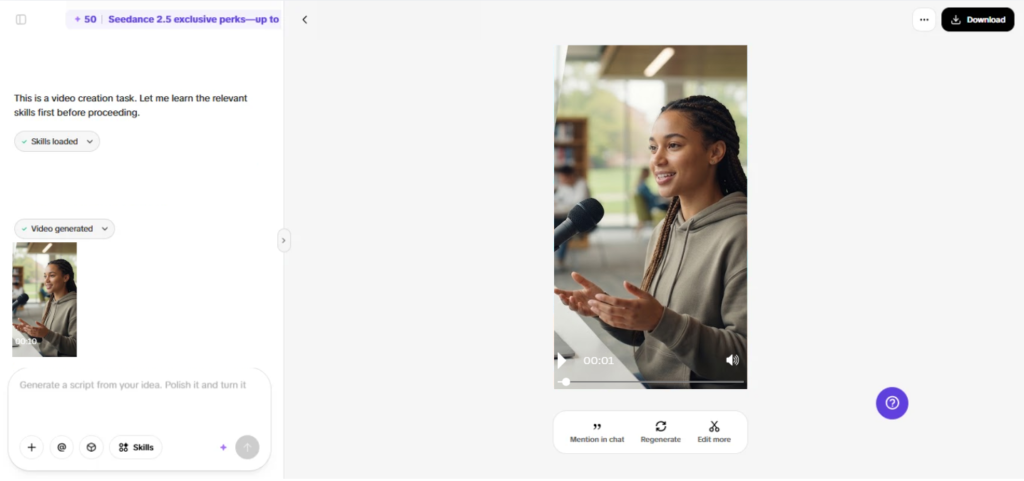
Step 3: Strengthen and Export the Testimonial
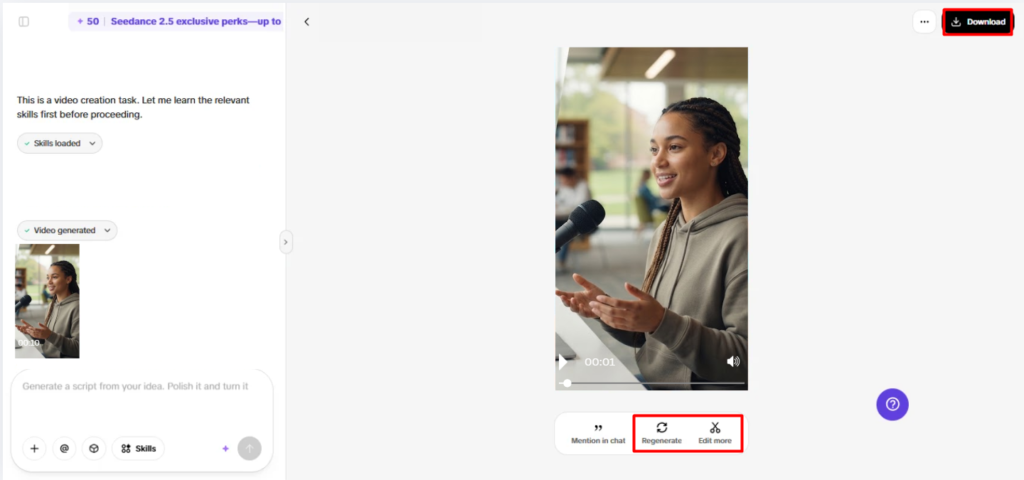
- You can click on the “Download” tab present in the top right corner to save it to your local device. You can also click on “Regenerate” if you don’t like your video. To edit the generated video, click the “Edit more” tab present right under the video to open the Pippit editing interface for further customization.
- Customize your video by editing captions manually, adding text, and adjusting size, color, alignment, filters, and effects.
- You can also add background music, remove backgrounds, and fine-tune the visuals to make the testimonial feel more polished and realistic.
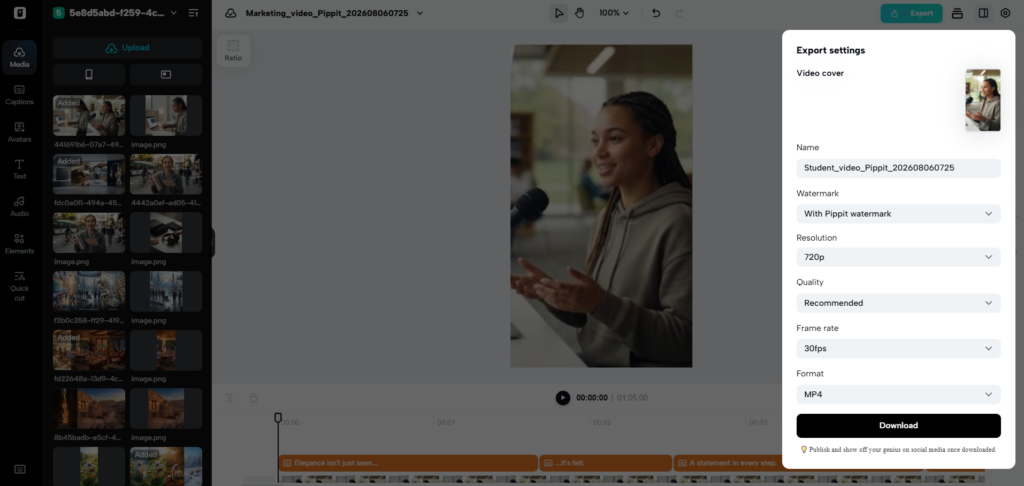
- When your video is ready, click “Export” in the top right corner.
- Select “Publish” to post directly to TikTok, Instagram, or Facebook, or click “Download” to save the video with your preferred format, resolution, frame rate, and quality.
Add Supporting Scenes Without Losing Testimonial Continuity
The supporting footage should not interrupt the speaker’s message, but should help to clarify it. Convert product images, packaging, scenes, and/or existing visual assets to video. Use between presentation moments to introduce these scenes when they explain an important point. Timestamp prompts can be used to guide actions at certain moments in the clip. For instance, start with a close-up of the product, then add some interaction and end with a wider shot. Be consistent with clothing, colors, camera quality, lighting, and product details. Always return to the presenter after each supporting sequence in a smooth manner. This way, continuity is maintained, and extra visual proof is provided. When reviewing, cross-check each detail created with the reference provided. Examine hands, face expressions, product labels, reflections, and proportions of objects. Any discrepancies can erode confidence – particularly in close-ups of the product. Keep scenes short if they’re prone to unpredictable outcomes with complex actions. Only extend successful footage if you have checked the final frame. Keep copies of approved versions in case you want to try out big changes.
Maintain Spatial and Factual Integrity
Testimonial-based copy should differentiate between fictionalised presentation and real customer experiences and proven claims. Do not make up purchases, results, qualifications, endorsements or personal histories to make a video seem real. When building environments or creating visuals, Seeworld is a reflection of the trend towards 3D world models which focus on spatial relationships, scene structure and viewpoints instead of single assets. Do the same with testimonials; make sure all visual implications are in line with the message. Check product details, captions, oral statements, labels, and contextual images before publication, and make fictional statements or images obvious.
Polish Testimonial Videos Inside Pippit
Check captions for errors or awkward expressions; automated captioning may have mistakes. Add text overlays to help clarify specifications, conditions, dates, or important factual information. Make subtle adjustments to effects, filters, and backgrounds. Too much “style” to a conversational presentation can give the impression that it is not a conversation. Check pacing from introduction to conclusion, eliminating any pauses that could hinder comprehension. Combine verbal with visual and print information. Check test frames, audio clarity, transitions, and visual consistency prior to export. Pippit will let creators add the finishing touches needed to create versions suitable for various platforms. Select the resolution, format, frame rate, and quality before saving. Pippit also enables multilingual creative processes for regional campaigns. Carefully translate factual scripts, maintaining the meaning and necessary disclosures. Post captions that a fluent speaker has translated. Captions may differ in length, size, and placement from platform to platform. Create variations of the factual message for various media.
Conclusion
Using natural scenes and convincing presentation, realistic rendering can add to the storytelling nature of testimonials. The ingredients of strong results are structured scripts, focused environments, limited movement, and pertinent references. Pippit facilitates the creation, editing, refinement, and publishing in one creative workflow. But there is nothing that can replace real evidence or honest expression. Do not treat fiction as fact and verify any sales pitches. If there is responsible presentation, then there is credibility and no misleading of the audience.